Send Email
The ‘Send Email’ option will send email to a target audience. You can send an email without setting any conditions about all results, or you can create an email that will only be sent when a condition is met by using branches.
How to Add an Email Communication Rule
Add a step in the communication rules tab.
Click on ‘Send Email’.
Provide a communication name so you can easily identify the content and audience of this email communication.
Choose how would you like to send emails, and select whether you would like to:
- Send One Email for all Results, Manually Entering Addresses
- One email will be sent to users that were manually added to the recipient field of this communication step for all results.
- Group by an Email Column and Send an Email per Unique Address
- This will aggregate a single email for all records in the results table that relate to a particular email address in an email column.
- For example, if the results table contained unresolved leads in a CRM database, and each lead recorded the email address of an assigned salesperson, Loome Monitor could generate individual emails for each salesperson.
- If this results table had five rows assigned to one person and two rows assigned to another salesperson, each user would receive one email for their assigned rows. One user would be notified about the five rows, while the other user would receive one email about two rows.
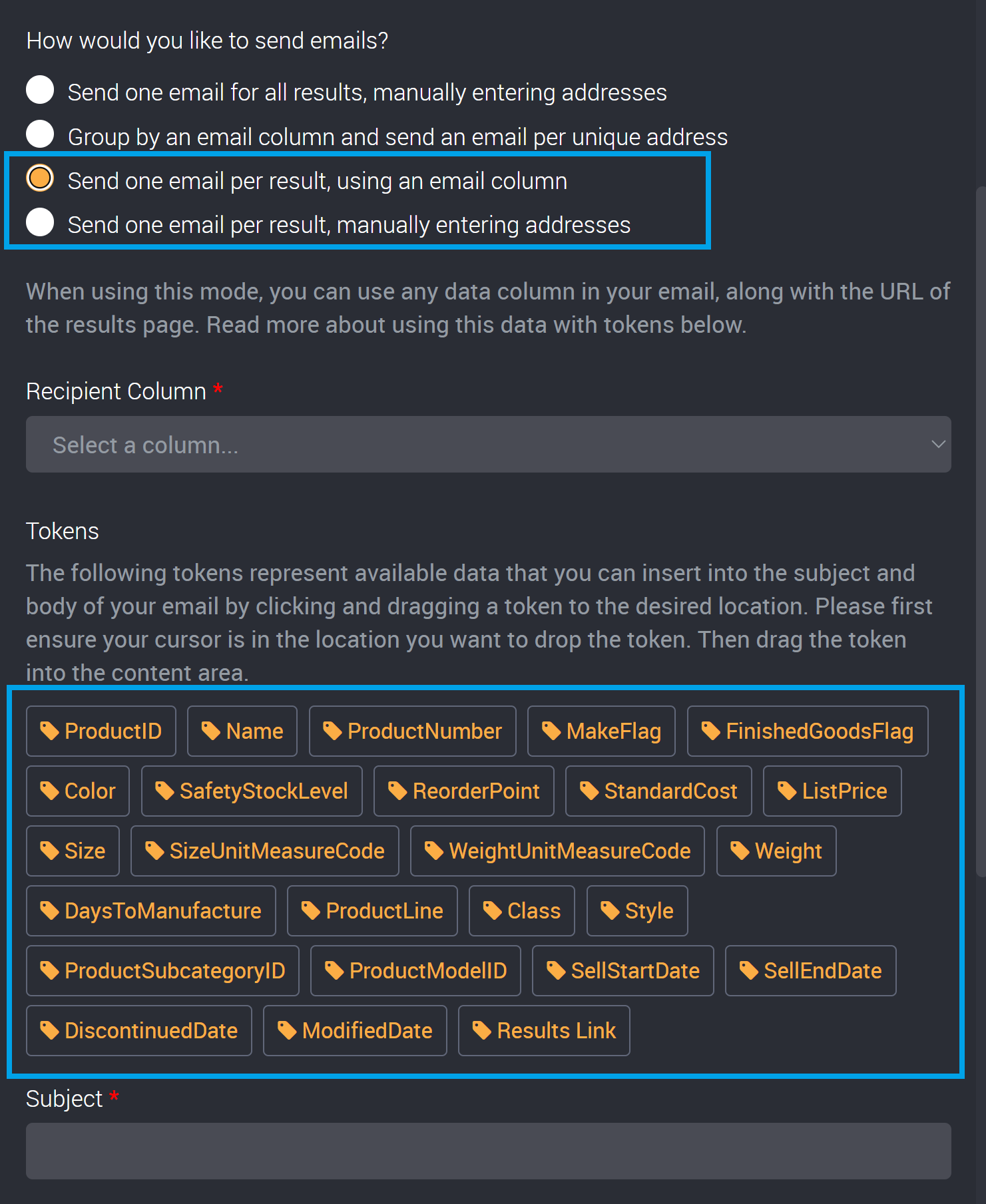
- Send One Email per Result, using an Email Column
- You can send one email per result based on a dynamic email column. This will send one email per result to each assigned email address in the email column of the results table.
- For example, if a user had two records assigned to them, they will receive two emails.
- Send One Email per Result, Manually Entering Addresses
- This will send a single email to a static list of recipients for each result.
- If there are 10 records, each manually added user will receive 10 emails.
Manually Add Email Addresses
If you have chosen to manually add email addresses, please follow the next few steps.
You can add the audience for this email communication in the Recipient List field.
Add multiple emails by separating them with a semi-colon.
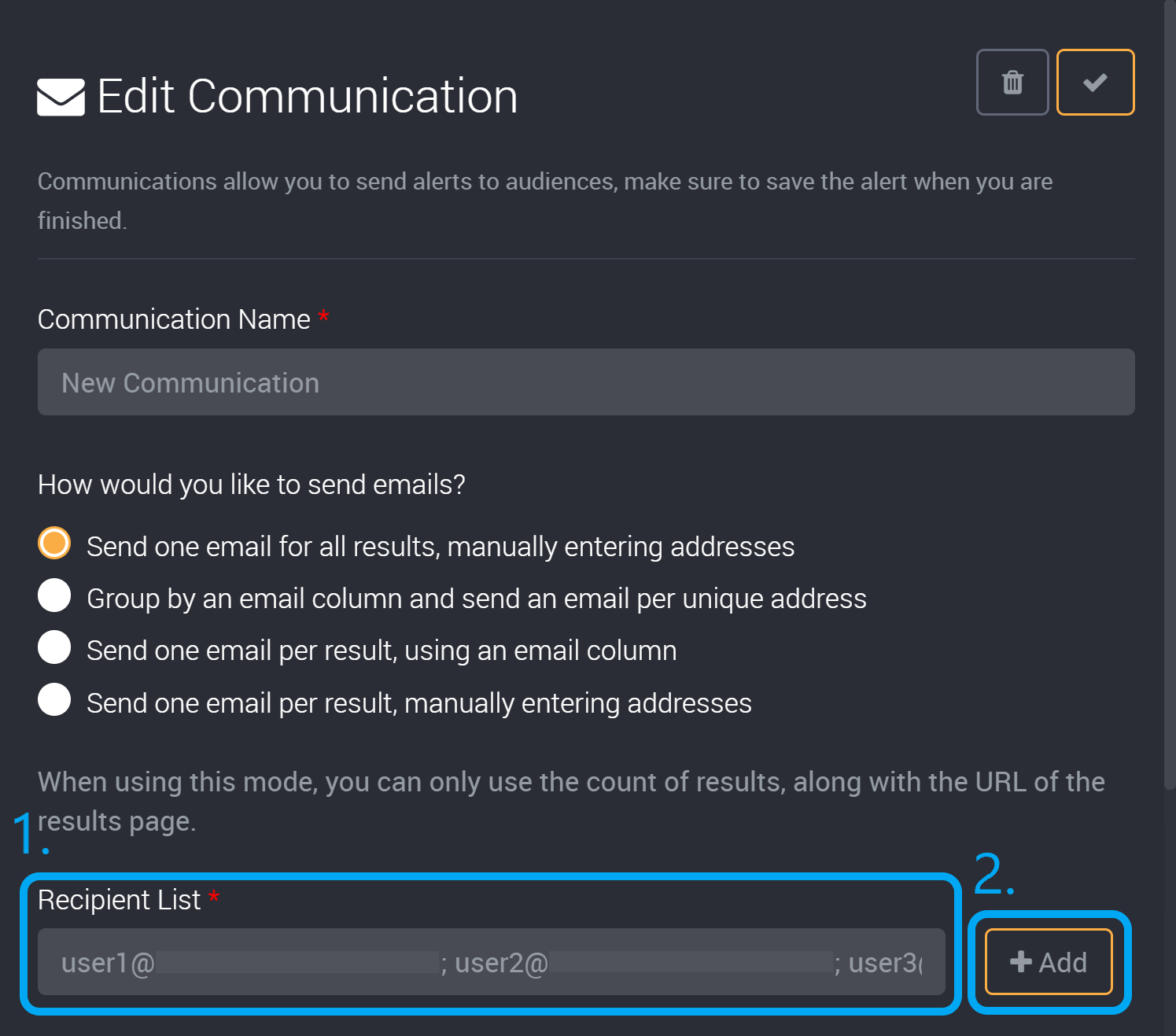
Click on the + Add button once you have provided the email address(es) to this field, and any email addresses that have been added can be viewed below.
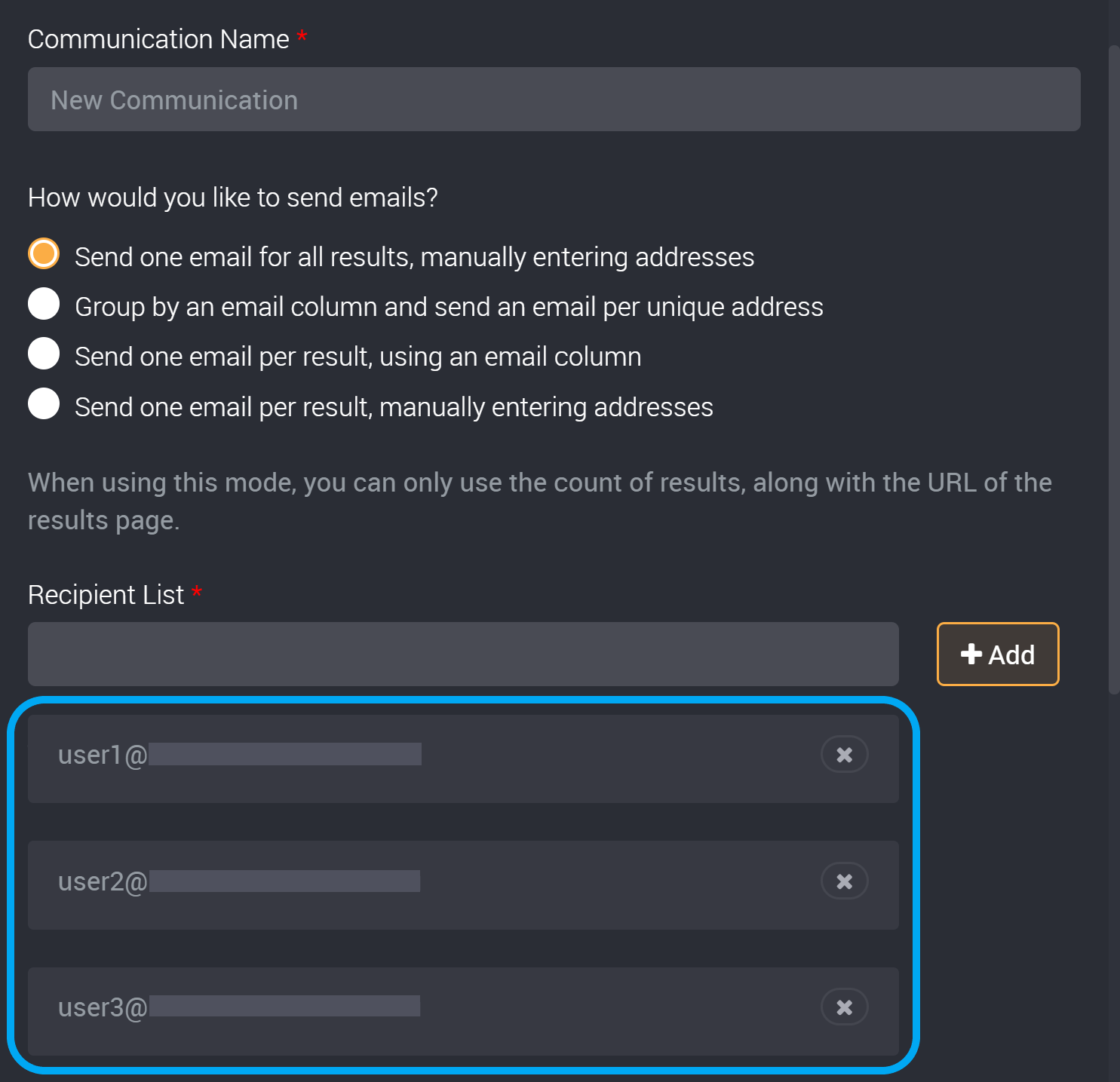
Please provide email addresses in a complete email format so these email communications are successfully sent.
Send using an Email Address Column
If you have chosen to send emails using an email column, under the title Recipient Column select the column that contains the email address(es) you would like to communicate with from the dropdown. This dropdown will display all available columns for this rule, including Assigned to, source data columns and custom field columns.
Save the rule from the right-hand dropdown if you have added a new custom field column to be able to select it in this recipient dropdown.
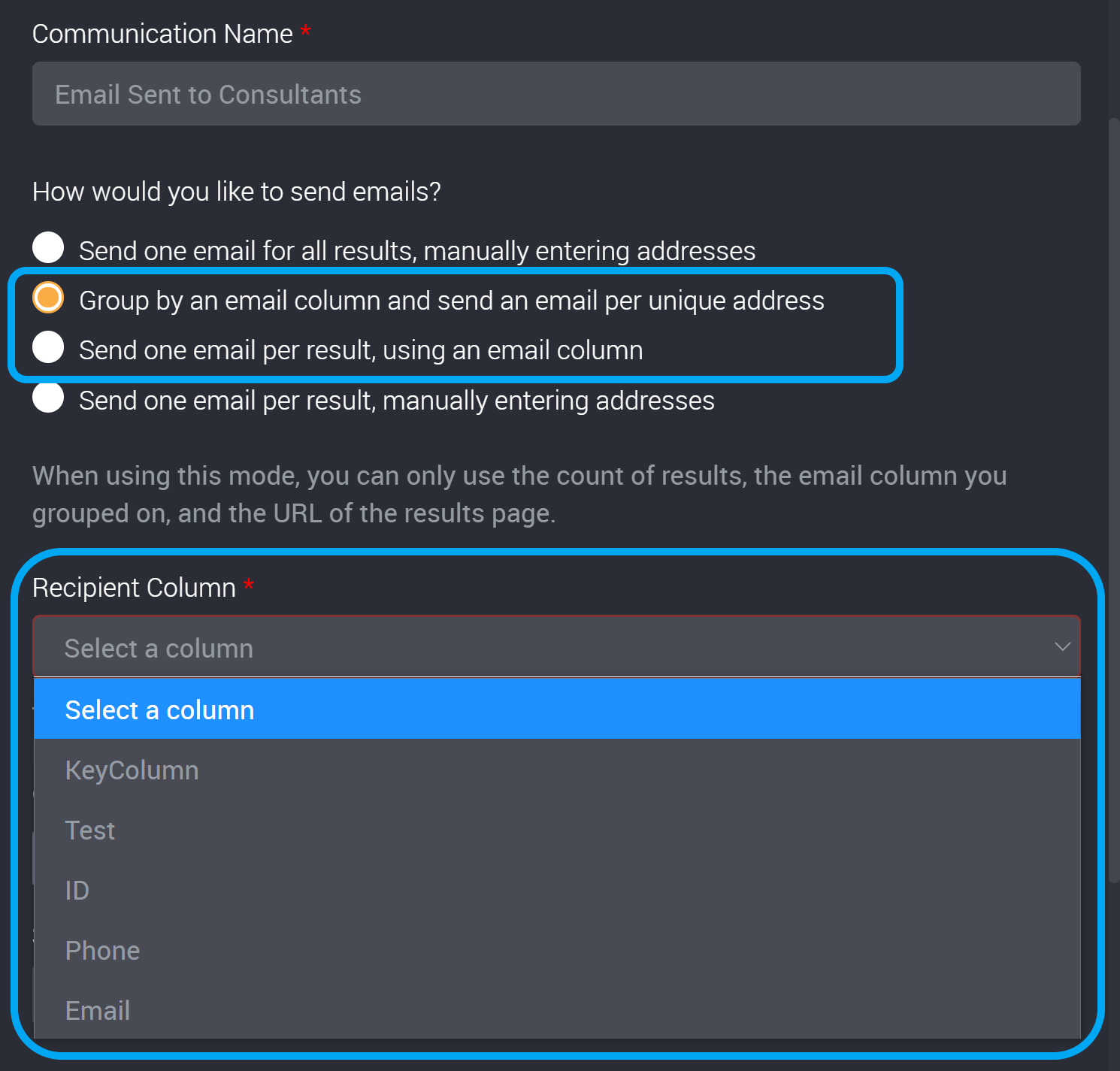
When this rule is executed, the email addresses in this column will receive the email content created in the next step.
Please ensure that the email addresses in your selected column are in a complete email format so that your email communications are successfully processed.
Add Email Content
Next, type in the subject of the email communication that will be sent out to users.
Type in the content of the email in the next field.
You can use HTML or you can use the text editor above this field.
Tokens
Tokens represent available data from the data source your query selected that you can insert into the subject and content of your email.
The types of tokens that are available differ depending on the email type that you selected earlier.
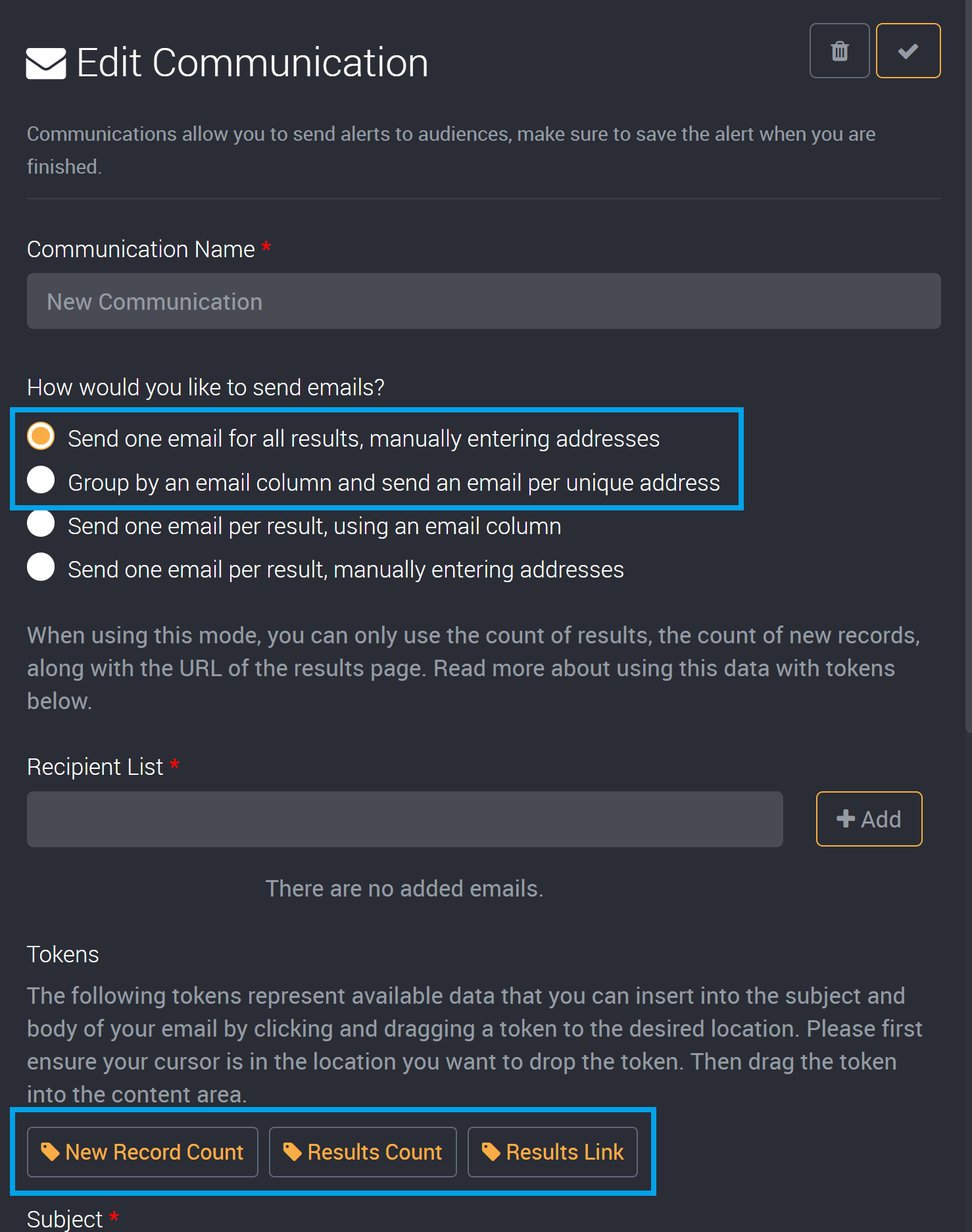
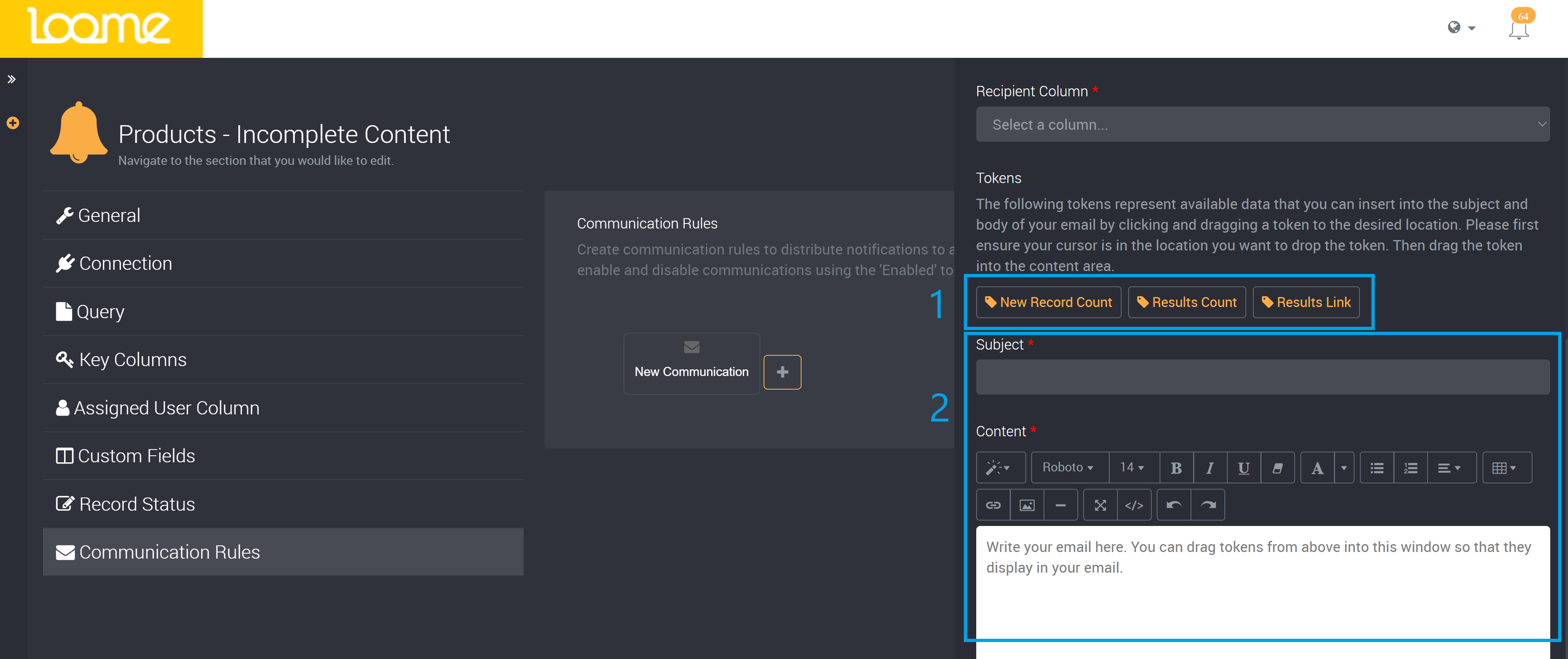
- If you selected, ‘Send one email for all results, manually entering addresses’, or ‘Group by an email column and send an email per unique address.’
- You can add a link to the results page ‘Results Link’, the number of results ‘Results Count’, and the number of new records added in the last run of the rule ‘New Record Count’.
Please note that the ‘New Record Count’ token is not available in manual rules.
- If you selected, ‘Send one email per result, using an email column’ or ‘Send one email per result, manually entering addresses.’
- You can use any data column available in this rule, as well as the link to the results page.
How to Add a Token to your Email Subject or Content
Tokens are available above the subject field.
Select where you would like this data to display.
Drag the token into the content field, and it will be added to where you last clicked.
For example, if you were to drag in the ‘Results Link’, the audience that is sent this email will be able to follow this link to view the results they were informed about.
Save your Communication Step
Click on the tick button at the top-right corner to add this communication step.
You can repeat this process to add multiple communication steps with different conditions by clicking on the + beside a communication step.
Please note that communication branches filter down. Each branch filters data down to the next step. If you have a branch from a false step then only data with these false values will be available to subsequent branches, so that means there will not be any fields that are true in the next branch.
If you have added multiple communication steps, please note that if one fails it will not prevent the other communication steps from being processed. For example, if I have three email communications and one failed due to an incorrect email address, the other two email communications will still be sent.
You can then save this rule to save the communication rules.