Branching Logic
You can send communications for specific conditions. Learn how to create branches that will only email an audience or create a task if your set condition has been met using branching logic.
To create a new branch, click on Create first step.
Click on Branching Logic in the slide-out that is expanded.
Add a name that will easily identify the purpose of this branch.
Select the column that this condition will apply to from the dropdown.
This dropdown will display all available columns for this rule, including Assigned to, New Record and custom field columns.
In the next dropdown, select the condition type.
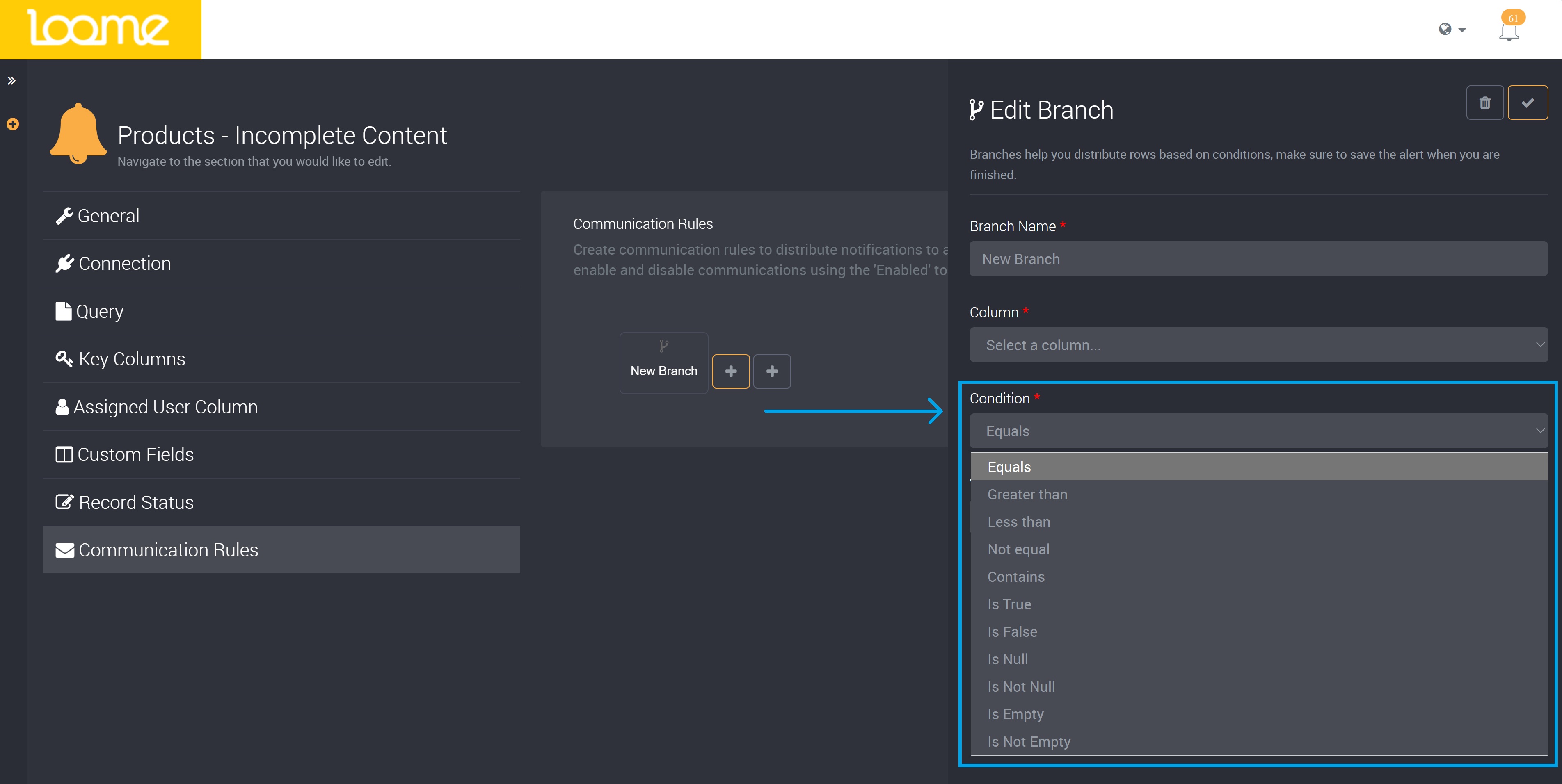
Then provide the value for this condition.
For example, if a user has set up a condition and email step, where the condition for the Color column is ‘Contains’, while the provided value is ‘Silver’. After adding an email as the next true step, when any unresolved row in the results contains ‘Silver’ in the column ‘Color’, the next true step will send an email to assigned recipients when this rule is executed.
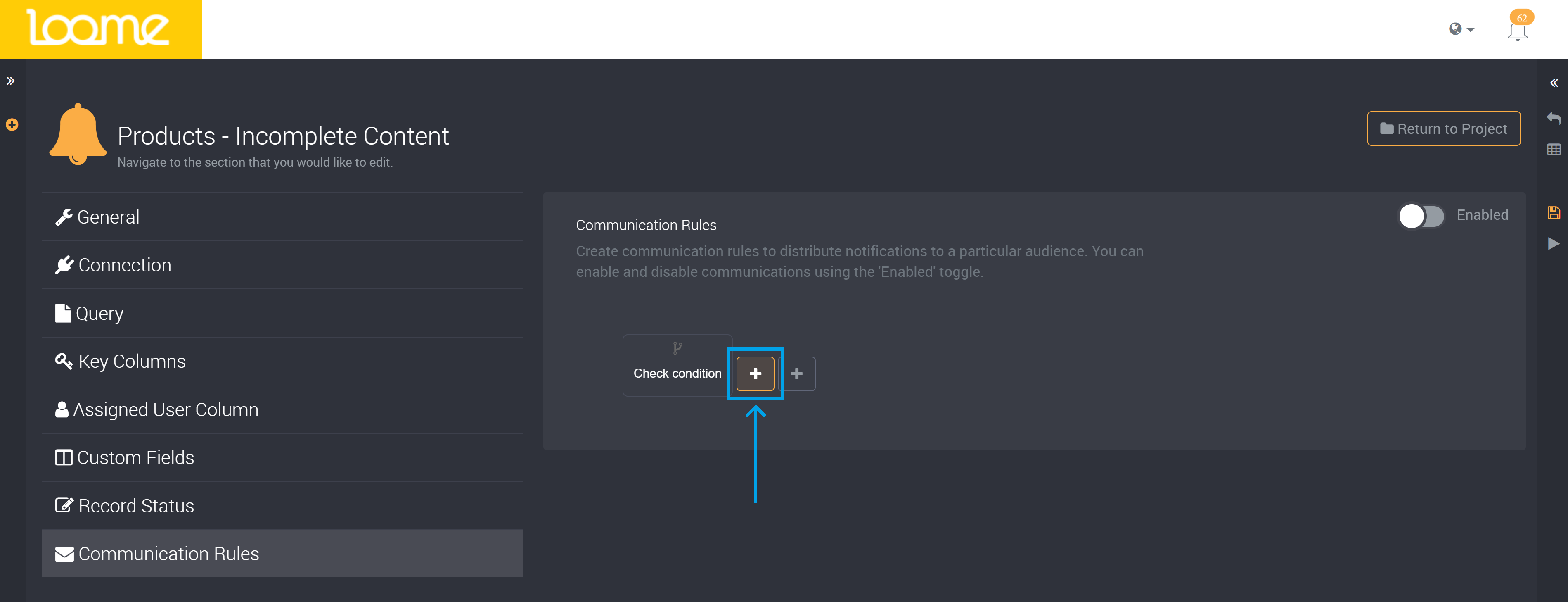
Next, choose a ‘True’ or ‘False’ step.
- ‘Add True Step’: If a record meets the above branch condition, the next step you configure here for the true step will be performed. (For example, if you want to send an email when this condition is met, add an email step here.)
- ‘Add False Step’: If a record does not meet the above branch condition and you set a false step here, this action will take place.
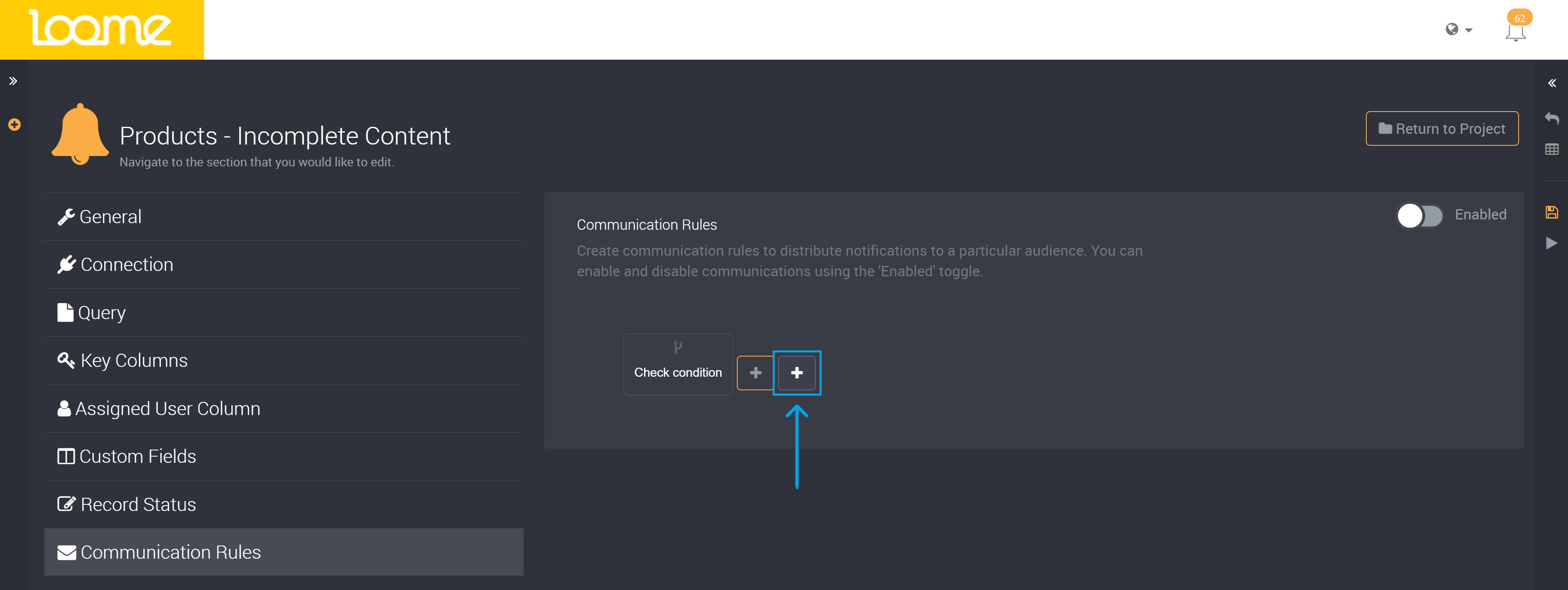
This will expand the slide-out again to add another communication step.
Please note that communication branches filter down. Each branch filters data down to the next step. If you have a branch from a false step then only data with these false values will be available to subsequent branches, so that means there will not be any fields that are true for the above condition in the next branch.
If you have added multiple communication steps, please note that if one fails it will not prevent the other communication steps from being processed. For example, if I have three email communications and one failed due to an incorrect email address, the other two email communications will still be sent.
In the next two sections, learn how to create an email or task that will be created when the conditions configured for this step are met.