Add File Definitions
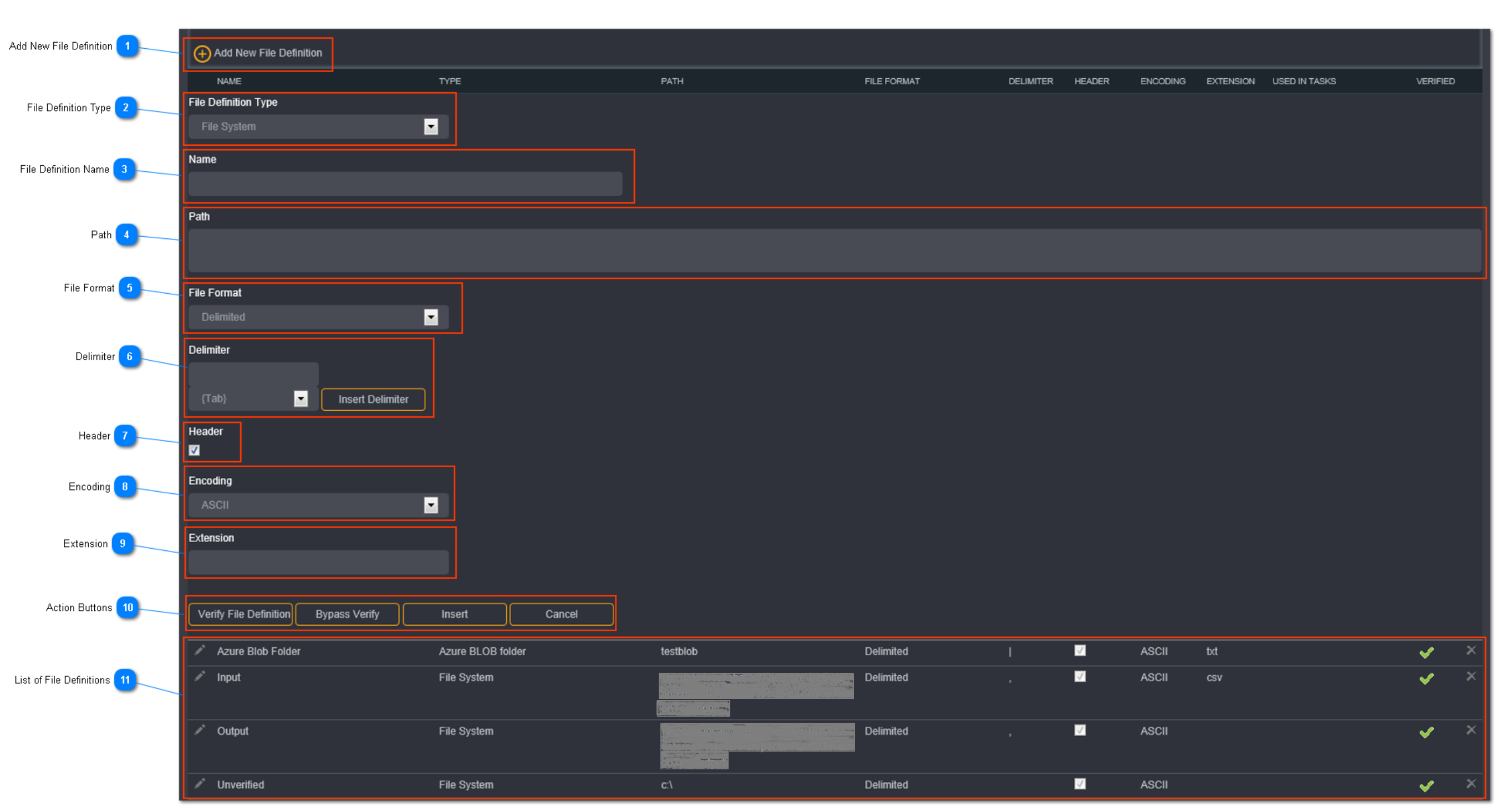
Add New File Definition
Click Add New File Definition.
File Definition Type
Select the file definition type.
The available file definition type options are:
- File System
- Azure BLOB Folder
File Definition Name
Enter a unique file definition name here.
Tip: File definition names must be unique. It cannot exist in another group.
Path
Enter the file path here.
The file path should be the parent folder of the intended exported files, NOT the name of the destination files itself. A single file will be created for each of the tables and will be named with the same name as the table name. This parent folder needs to be accessible by both the Loome Integrate Web Server and Database Server.
Tip: Ensure that the Loome Integrate proxy account being used has the required permissions to access and write to the path.
File Format
Select the file format from the drop down.
The available file format options are:
- Delimited
- Fixed Width
- HexDelimited
Delimiter
8Here you can specify the delimiter that is used to define the fields within the source files or in the output files. Enter the delimiter in the textbox or select a delimiter from the drop down then click Insert Delimiter.
The available delimiter options are:
- {Tab}
- {LF}
- {CR}
- {Vertical Tab}
- {CR}{LF}
Header
Select the header checkbox if the first line in the file contains header information, or a header is to be produced when used as an output.
Encoding
Select the file encoding to be use when using the file definition as an output.
The available encoding options are:
- ASCII
- ANSI
- Unicode
- UTF-8
Extension
Specify the file extension to be used for the source or target files. For example, csv or txt
Tip: No full stop (.) is required when entering in a file extension.
Action Buttons
When you have entered all the necessary file definition details, click Verify File Definition to validate the syntax and verify that the file path exists.
You can choose to verify the file definition at a later time by clicking Bypass Verify. Unverified file definitions will be highlighted in red in the file definitions list and a lock icon will display under the verified column.
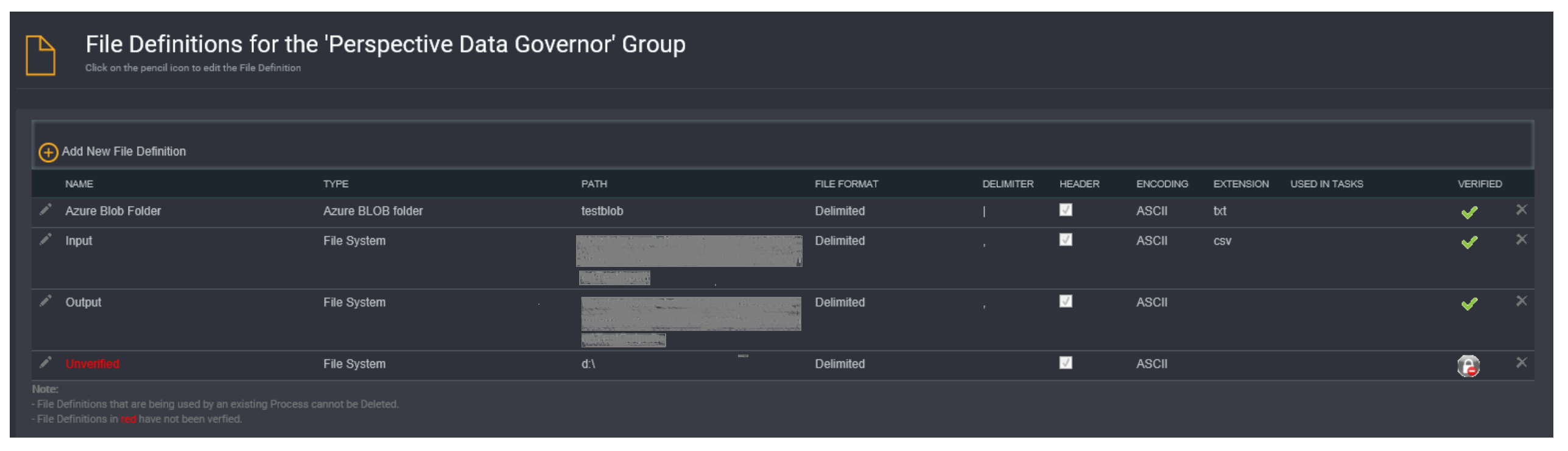
Click Insert to save the verified/unverified file definition.
List of File Definitions
To make changes to a file definition, click on the corresponding pencil icon.
The list of file definitions will display the following columns:
- Name - the name of the file definition
- Type - the type of the file definition (Azure BLOB Folder/File System)
- Path - the file path location
- File Format - the file format type
- Encoding - the encoding type used
- Extension - the file extension (input or output)
- Used in Task - the encoding type used
- Verified - whether the connection has been verified
Tip: A cross against a file definition means that it is not being used and it can be deleted.
File definitions that are currently being used by other processes cannot be deleted.
You will need to remove all references to the file definition first before you can delete it.