Add Connections
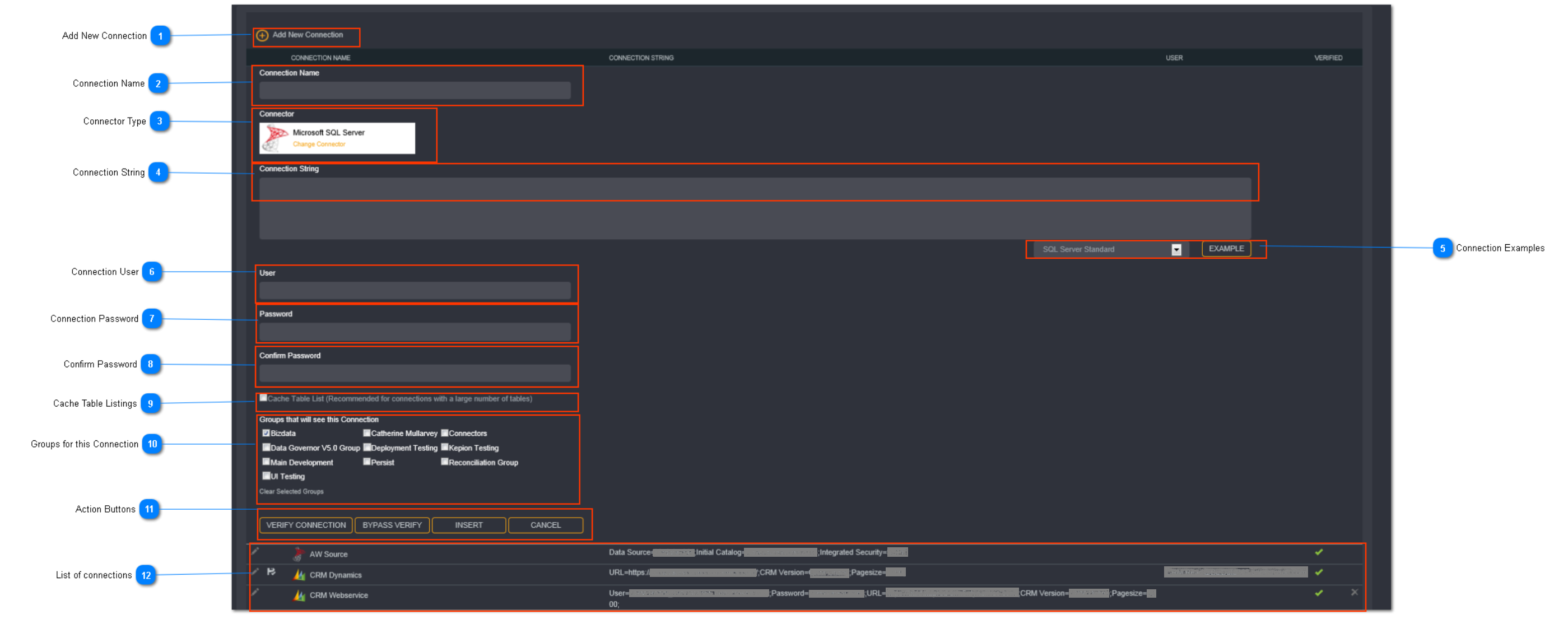
Add New Connection
Click Add New Connection.
Connection Name
Enter a unique connection name here.
Tip: Connection names must be unique. It cannot exist in another group.
Connector Type
Select the connector type here
The available connector types are:
- Oracle Data Provider (ODP) Connector
- Microsoft SQL Server Connector
- ODBC Connector
- OLEDB Connector
- Azure Blob Storage Connector
- Master Data Services Connector
- Kepion Planning Connector
- XMLA Connector
- SharePoint Connector
- Salesforce Connector
- Microsoft Dynamics 365 Connector
- Microsoft Dynamics CRM Connector
- Google Analytics Connector
- Google AdWordsConnector
- MailChimp Connector
- YouTube Connector
- YouTube Analytics Connector
- QuickBooks Online Connector
- JIRA Connector
- Google BigQuery Connector
- Azure Storage Connector
- MySQL Connector
- Excel Connector
- Twitter Connector
- Facebook Connector
- Active Directory Connector
Connection String
Enter the connection string for the connection here.
Connection Examples
Loome Integrate provides the ability to select a template for connection strings from the example drop down.
The available connection example options are:
- Oracle Data Provider (ODP) Connector
- Microsoft SQL Server Connector
- ODBC Connector
- OLEDB Connector
- Azure Blob Storage Connector
- Master Data Services Connector
- Kepion Planning Connector
- XMLA Connector
- SharePoint Connector
- Salesforce Connector
- Microsoft Dynamics 365 Connector
- Microsoft Dynamics CRM Connector
- Google Analytics Connector
- Google AdWordsConnector
- MailChimp Connector
- YouTube Connector
- YouTube Analytics Connector
- QuickBooks Online Connector
- JIRA Connector
- Google BigQuery Connector
- Azure Storage Connector
- MySQL Connector
- Excel Connector
- Twitter Connector
- Facebook Connector
- Active Directory Connector
Connection User
If a user ID and password are required to connect to the data Source (E.G. using SQL Server Standard example), enter the user ID here. The format of the user ID can be either domain\username or an email address.
Connection Password
If a user ID and password are required to connect to the data Source (E.G. using SQL Server Standard example), enter the password here.
Confirm Password
Reenter the password.
Cache Table Listings
Check this box to cache the table listings for large connections.
Connections with a large number of objects (tables and views) can take a long time to retrieve from the source. This delay can degrade the responsiveness of the Loome Integrate user interface. The table caching feature allows objects in a connection to be cached locally (text file) in Loome Integrate so that they don’t need to be retrieved every time a new task is setup.
Tip: Table caching is recommended only for connections with a very large number of tables or views.

A disk icon will display against the connection if it has been saved with this option checked. When a connection is deleted the cached table listing will be removed for the database table. When you edit a connection with the Cache Table Listings option, you will be presented with the following :
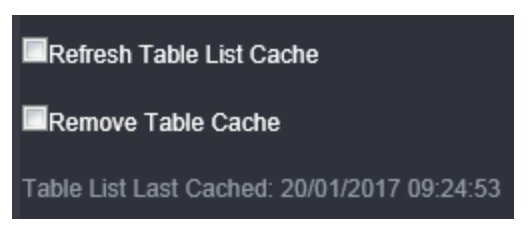
You can select to refresh the table list cache or remove the table cache altogether.
Groups for this Connection
In this section, you can choose to add groups which this connection can be used in. By default the group where you create this connection will be selected. Add more groups for this connection by selecting the checkboxes.
Tip: At least one group must be selected.
Action Buttons
When you have entered all the necessary connection details, click Verify Connection to validate the syntax and connectivity of the connection string.
You can choose to verify the connection at a later time by clicking Bypass Verify. Unverified connections will be highlighted in red in the connections list and a lock icon will display under the verified column.
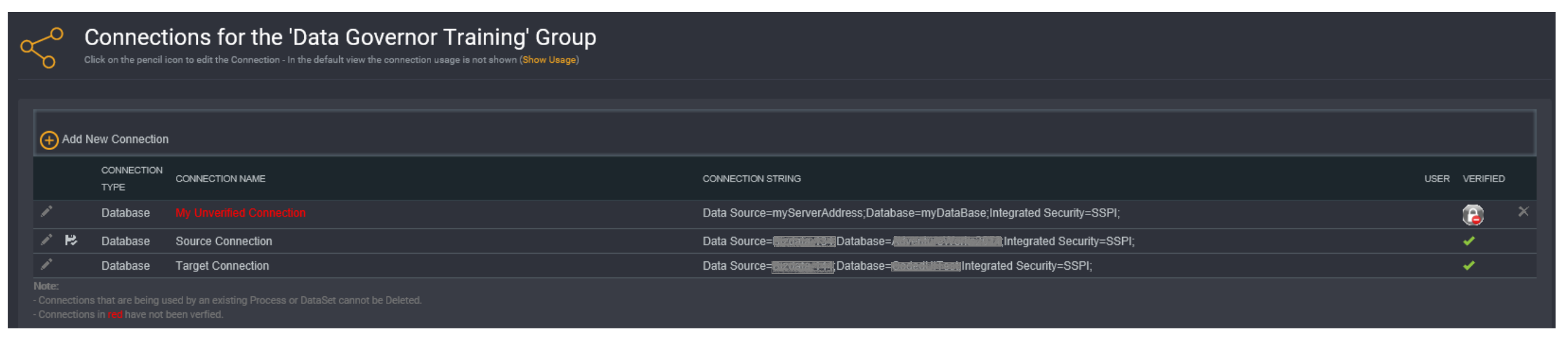
Click Insert to save the verified/unverified connection.
Tip: Unverified connections will not be available for you to select when creating tasks.
List of connections
To make changes to a connection, click on the corresponding pencil icon.
The list of connections will display the following columns:
- Connection Type - the connection type
- Connection Name - the connection name
- Connection String - the connection string
- User - the connection user (if applicable)
- Verified - whether the connection has been verified
Tip: A cross against a connection means that it is not being used and it can be deleted.
Connections that are currently being used by other processes or datasets cannot be deleted.
You will need to remove all references to the connection first before you can delete it.
Show Usage/ Hide Usage
Loome Integrate 5.2 gives you the ability to toggle between connection usage views.

Click Show Usage under the header to show 2 extra columns:
- Used in Task - shows the tasks where the connection is being used
- Used in Dataset - shows the datasets where the connection is being used
