Load Static Partition Table
From the task type screen, select Import to Kepion.
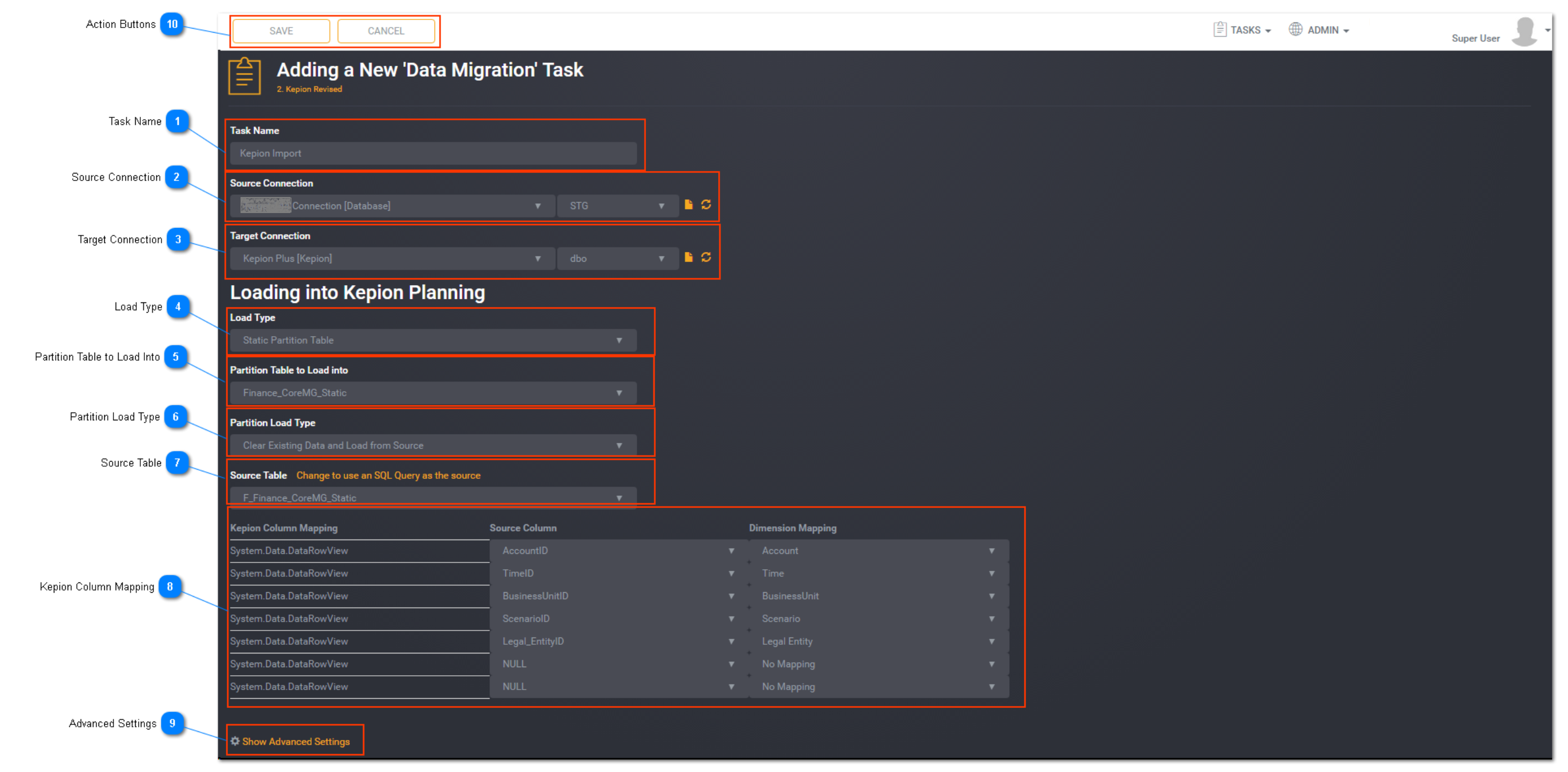
Task Name
Enter a unique task name here.
Task names must be unique to a project.
Source Connection
Select the source connection from the drop down list. Predefined connections will be listed here. Select the schema from the schema drop down list. The available schemas from selected source connection will be populated and listed here. Select the Change to File option (file icon) to use a flat file as a source. The file definition must be defined first.
Target Connection
Select the target connection from the drop down list. Predefined connections will be listed here. Select the schema from the schema drop down list. The available schemas from selected target connection will be populated and listed here. Select the Change to File option (file icon) to use a flat file as a source. The file definition must be defined first.
Load Type
Select Static Partition Table Load Type from the drop down.
The available load type options are:
- Dimension Member List - This will load into the dimension All Hierarchy.
- Dimension Hierarchy
- Static Partition Table
Partition Table to Load Into
Select the Partition Table to load into, from the drop down. By default, you can only import into Static Partition table, unless it is enabled in the connection. Refer to Connections for more information.
Partition Load Type
Select the Partition Load Type.
The available partition load type options are:
- Clear Existing Data and Load from Source.
- Merge Data From Source (Insert New and Update Existing)
Source Table
Select the source dimension to load from, from the Source Table drop down. Alternatively, select Change to use an SQL Query as the Source to use a SQL query as the Source.
Kepion Column Mapping
Map the Source Table columns to be imported into the Kepion fact table columns.
Advanced Settings
Toggle to show or hide the advance settings. Advanced settings are different for each task type.
Subject Areas:
Select Subject Areas for the task if applicable. Refer to Using a Subject Area for more information.
Logging:
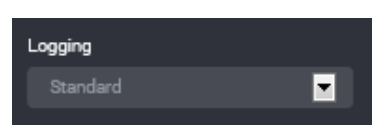
You can choose to select task logging.
Select a logging level. Logging options vary depending on the task type selected.
The available logging options for a Data Migration task type are:
- Standard - the default logging level as provided by Loome Integrate.
- Debug - the standard logging level with additional logging to assist with investigation of issues.
Tip: If you have both job logging and task logging on- when job logging is set to Standard then the task logging option will override this. Otherwise job logging will always take precedence.
Action Buttons
When you have entered all the necessary task details, click Save.
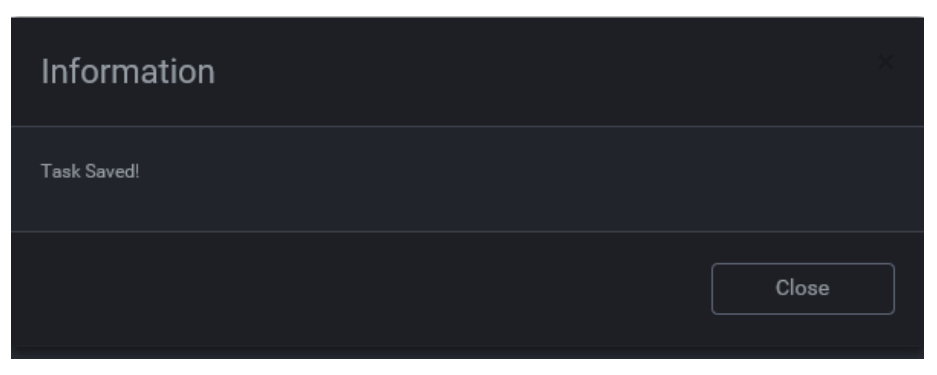
An information box will appear to confirm that the task has been successfully saved. Click Close.
Tip: New tasks are added to the bottom of the list as Enabled.