Reconciliation task
The Reconciliation task would be used for the following scenarios:
- Extraction and transformation of Financial data requires auditing
- Simple reconciliation of Source systems to the warehouse to ensure data being extracted and loaded correctly
From the task type screen, select Reconciliation.
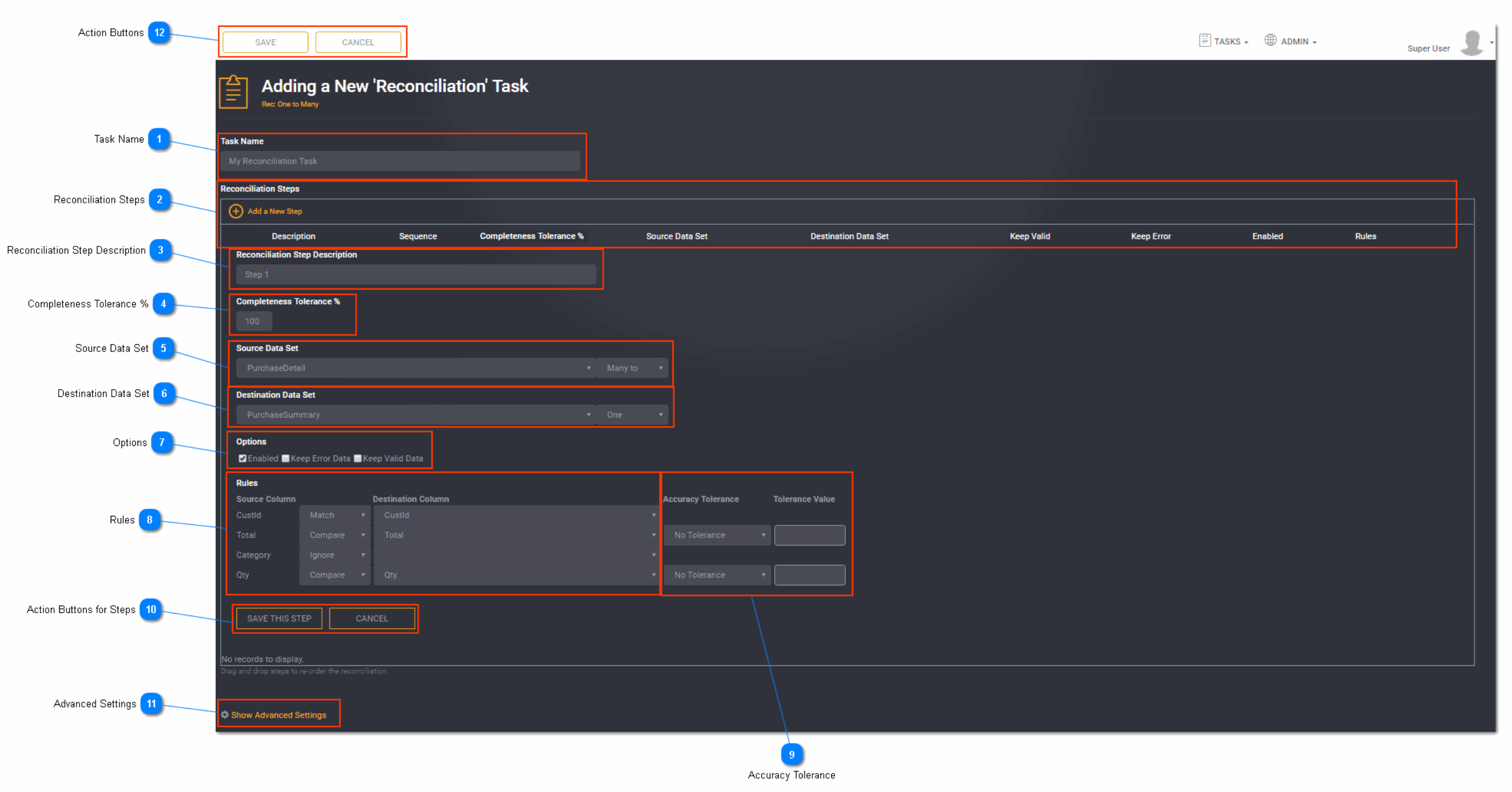
Task Name
Enter a unique task name here. Task names must be unique to a project.
Reconciliation Steps
Click Add a New Step to define a reconciliation step.
Reconciliation Step Description
Enter a unique reconciliation step description here.
Completeness Tolerance %
Enter the completeness tolerance %.
This tolerance measures the overall completeness of the reconciliation of the source and target datasets. The value can be between 0-100.
For example, if you enter zero (0) as a tolerance percentage then it is saying that you tolerate 0% difference. These datasets must match. If there are any errors or orphans the job will fail.
Source Data Set
Select the source data set. Predefined datasets will be listed here.
Select whether it is a One to or a Many to table.
Tip: Source datasets must be created first before you can select it from the drop down.
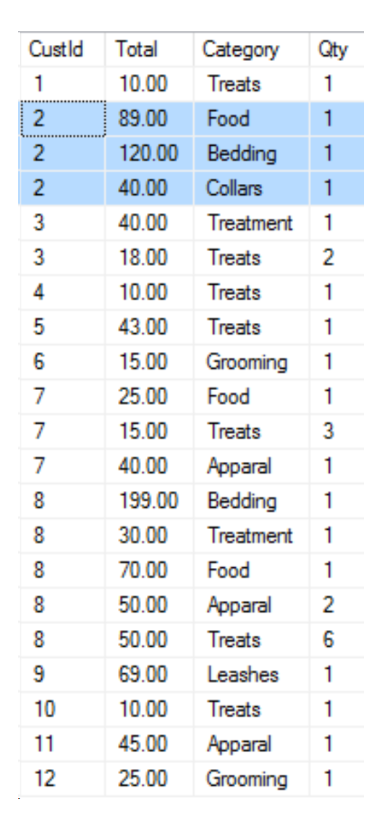
An example of a many side:
Destination Data Set
Select the destination data set. Predefined datasets will be listed here.
Select whether it is a One or a Many table.
Tip: Destination datasets must be created first before you can select it from the drop down.
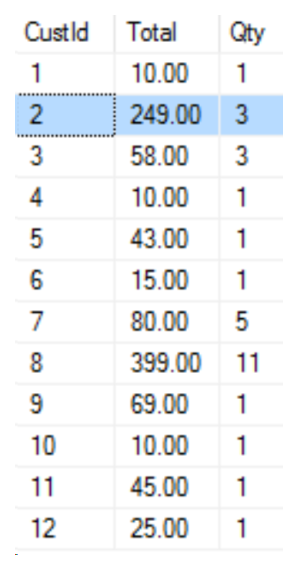
An example of a one side:
Options
Select the required options.
The available options are:
- Enabled - checked by default
- Keep Error Data - select to keep reconciliation error data. If not selected, errors will not be displayed in the reconciliation report.
- Keep Valid Data - select to keep reconciliation valid data. If not selected, valid data will not be displayed in the reconciliation report.
Rules
Define the rules on the source and target columns for the reconciliation step.
Tip: There must be at least one Match case.
Accuracy Tolerance
Once a compare match type is selected, the accuracy tolerance options will display. Select an accuracy type. This is the accuracy of the result by row.
The available accuracy type options are:
- No Tolerance - tolerance not required
- Numeric Percentage - tolerance by percentage
- Numeric Amount - tolerance by dollar amount
Enter the tolerance value.
Action Buttons for Steps
When you have entered all the necessary reconciliation step details, click the Save This Step.
Advanced Settings
Toggle to show or hide the advance settings. Advanced settings are different for each task type.
Subject Areas:
Select Subject Area for the task if applicable. Refer to Using a Subject Area for more information.
Logging:
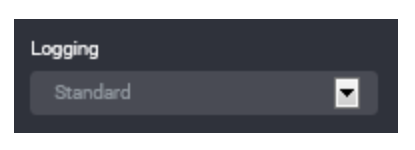
You can choose to select task logging.
Select a logging level. Logging options vary depending on the task type selected.
The available logging options for a Reconciliation task type are:
- Standard - the default logging level as provided by Loome Integrate
- Debug - the standard logging level with additional logging to assist with investigation of issues
Tip: If you have both job logging and task logging on- when job logging is set to Standard then the task logging option will override this. Otherwise job logging will always take precedence.
Action Buttons
When you have entered all the necessary task details, click Save.
An information box will appear to confirm that the task has been successfully saved. Click Close.
Tip: New tasks are added to the bottom of the list as Enabled.