ADFS App Registration
Follow the steps below to register an application within ADFS. This provides the ability for Active Directory users to log in to Loome Publish.
Open the AD FS Management tool.
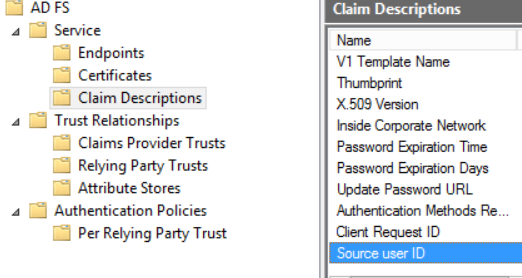
Verify that the Source user ID claim is available by going to ADFS > Service > Claim Descriptions.
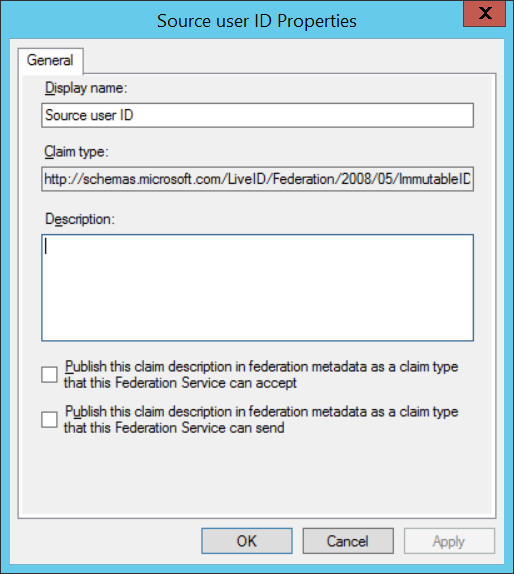
Check the list for a claim with the name ‘Source user ID’ as defined in the appendix of this document under ADFS Claim Descriptions.
If the Claim Description does not exist, then add it.
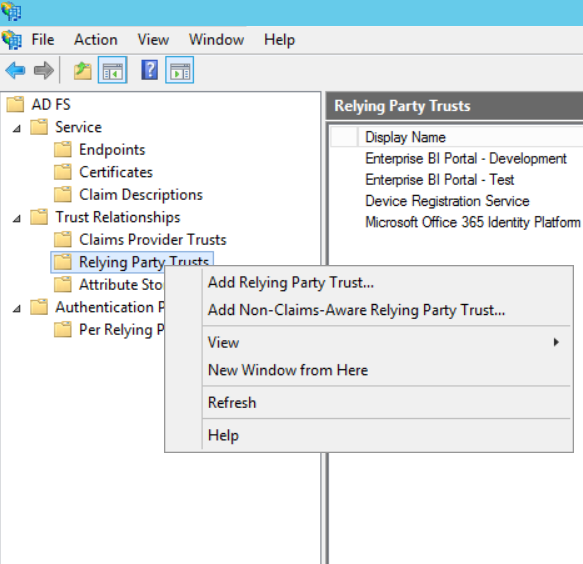
Add a new Relaying Party Trust by going to AD FS > Trust Relationships > Right click on Relying Party Trusts and select ‘Add Relying Party Trust’.
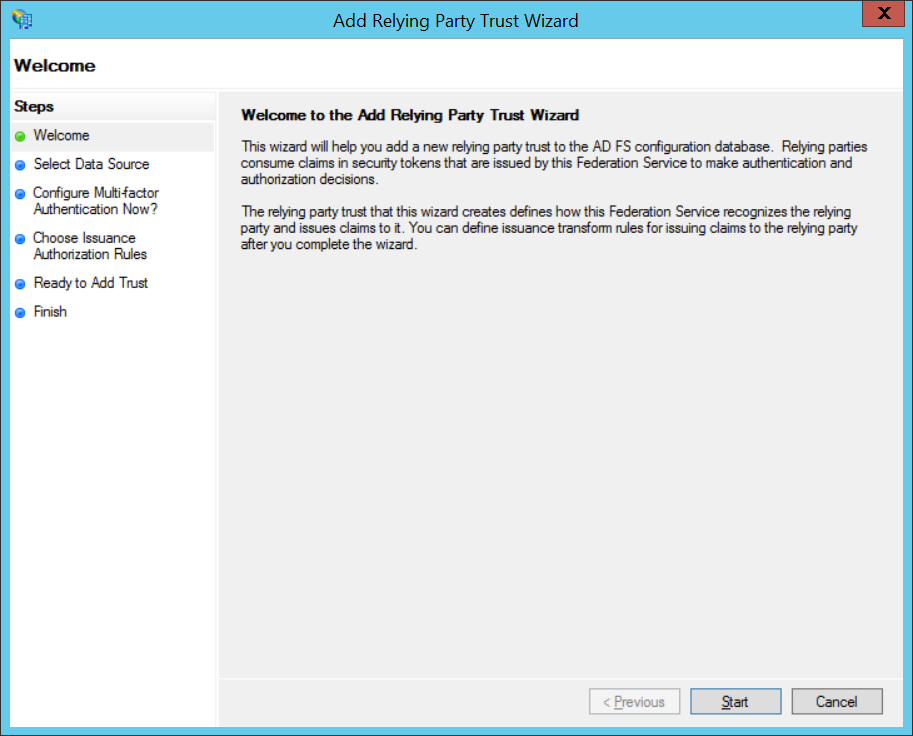
Select ‘Start’ to begin.
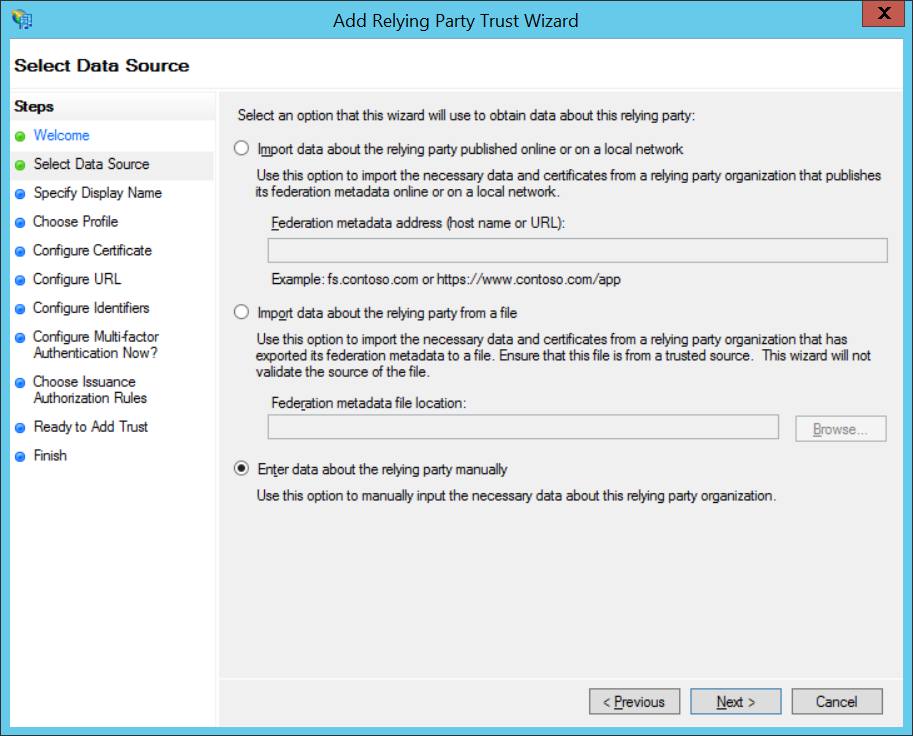
Select ‘Enter data about this relying party manually’ and select ‘Next’.
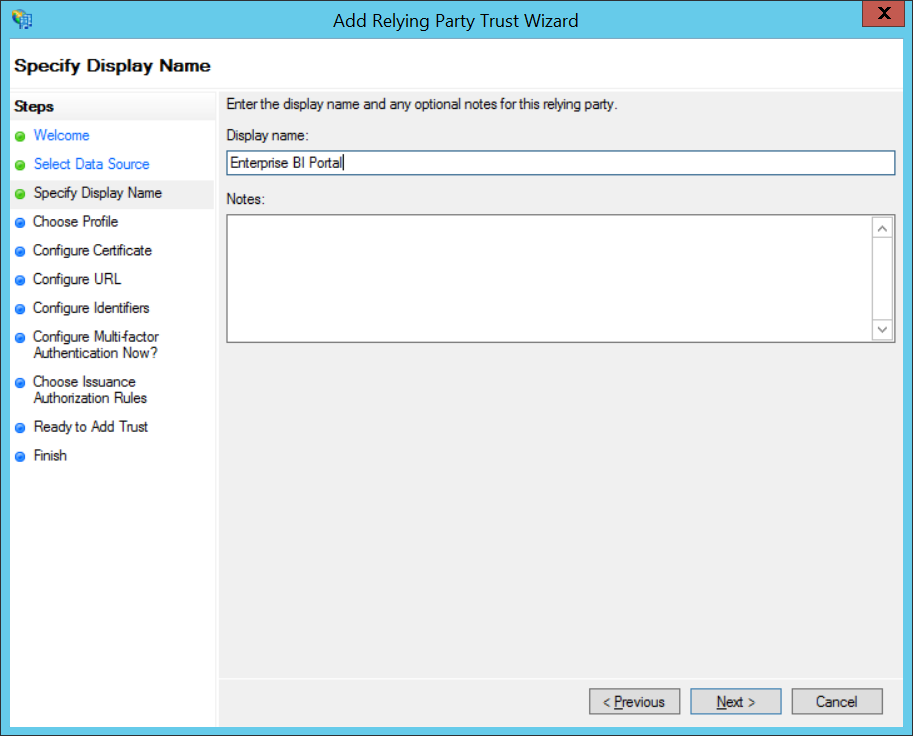
Enter ‘Loome Publish’ for the name (or a name of your choosing) and select ‘Next’.
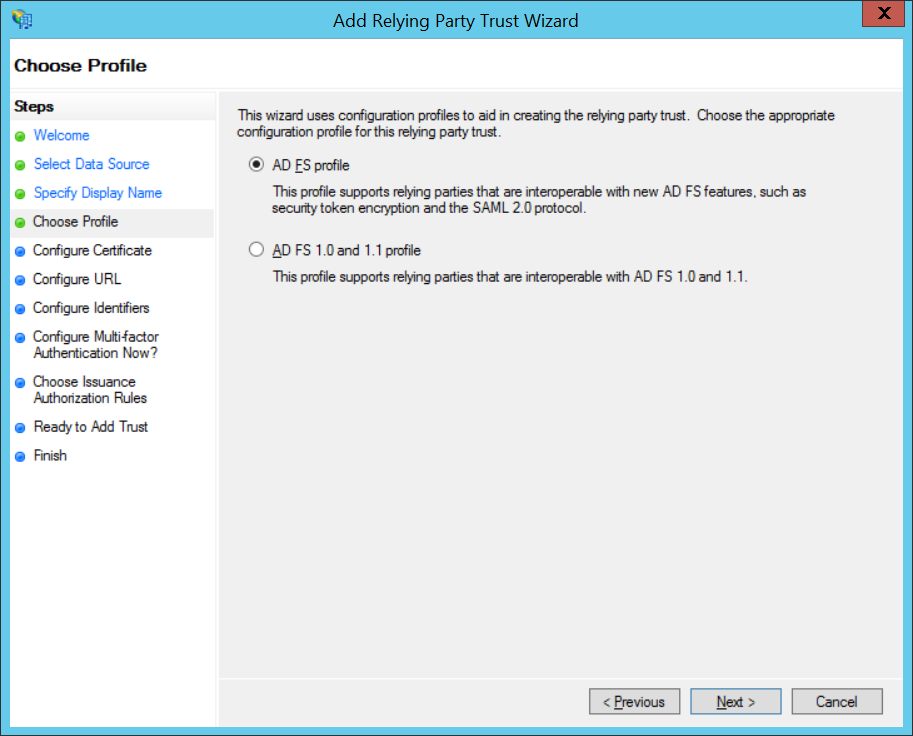
Leave the default ‘AD FS profile’ selected and select ‘Next’.
Select ‘Next’.
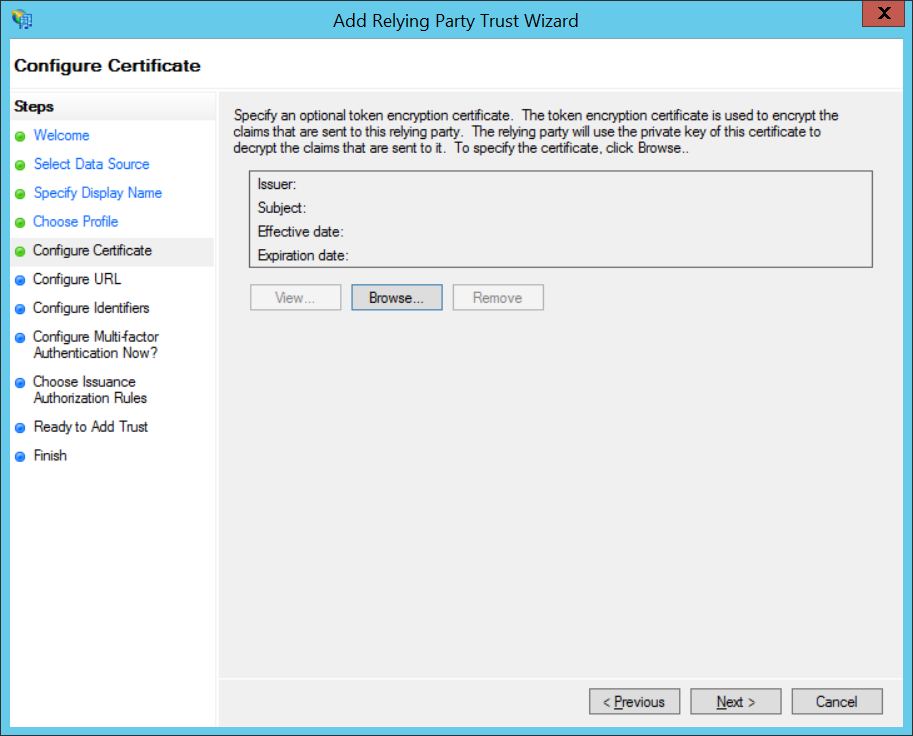
Select ‘Enable support for WS-Federation Passive protocol’ and then enter the URL of your Loome Publish portal, followed by a trailing forward slash.
Select ‘Next’.
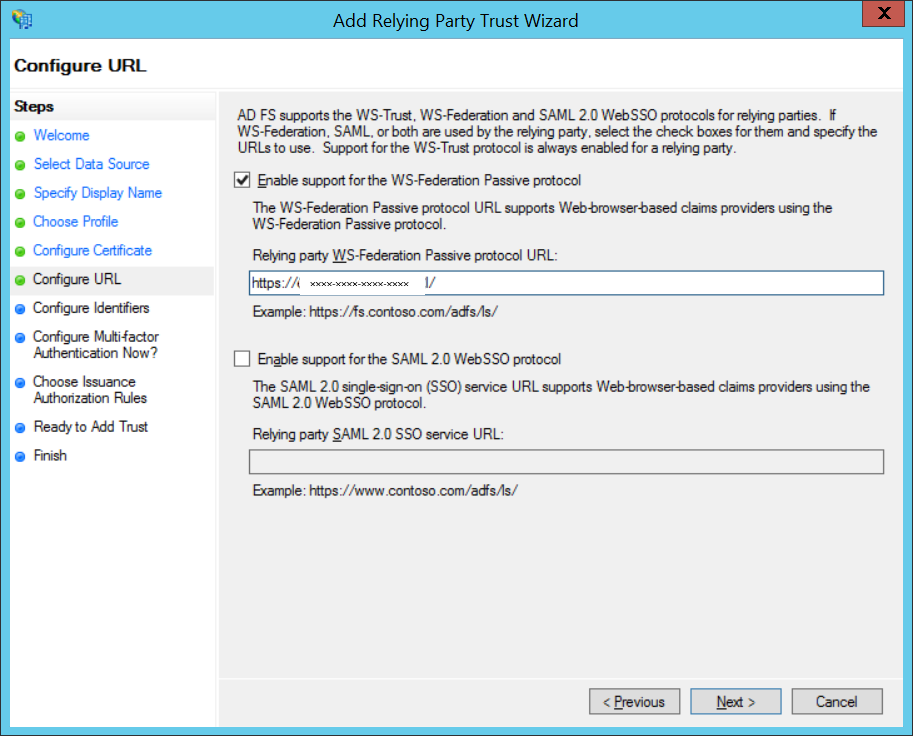
Select ‘Next’.
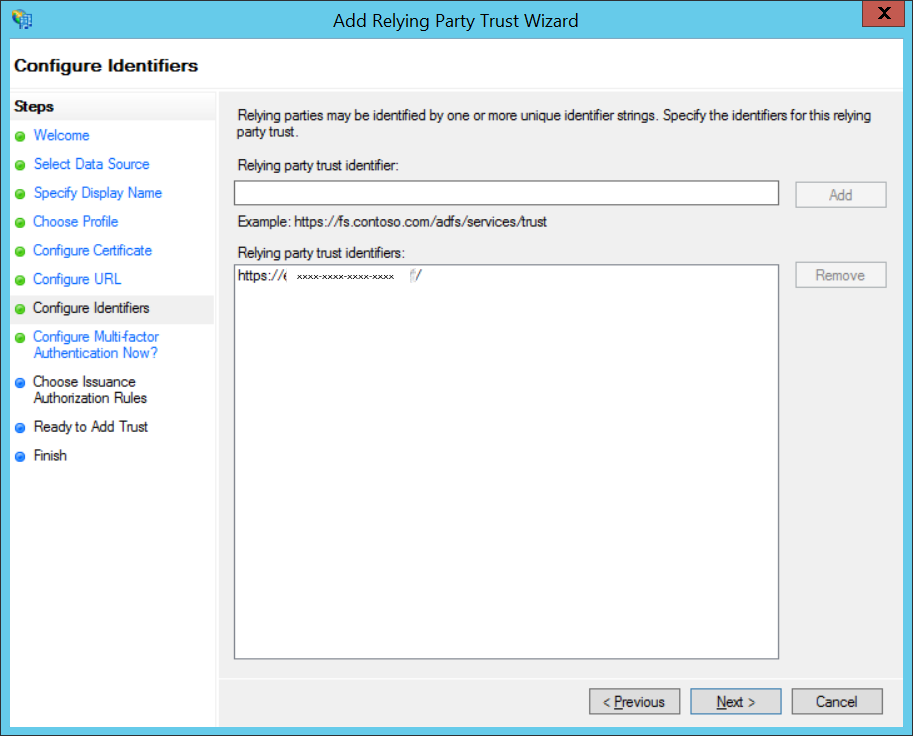
Select ‘Next’.
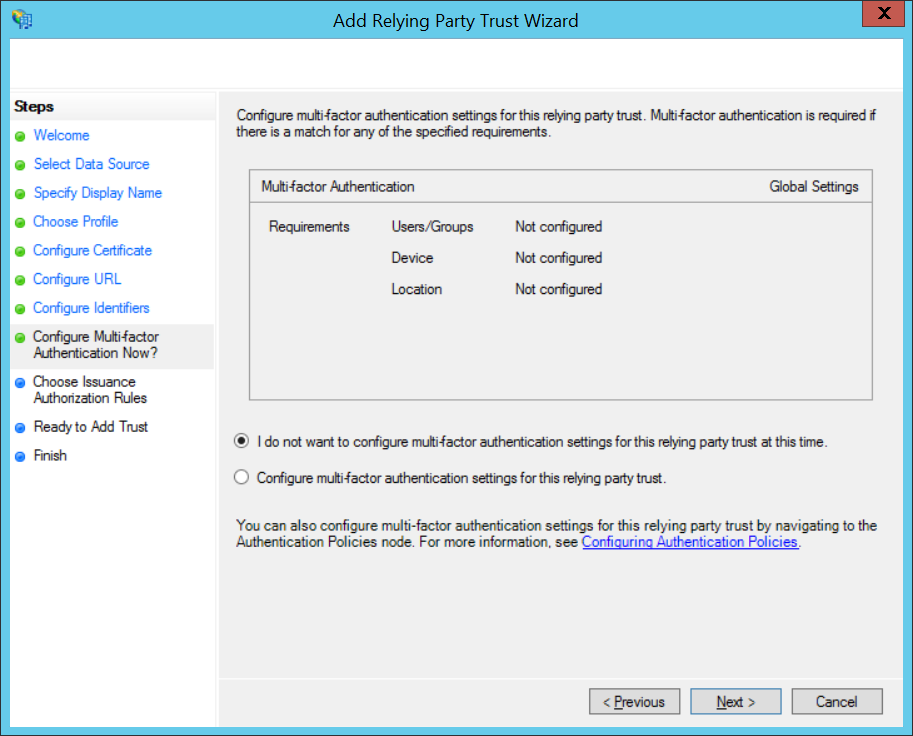
Select ‘Next’.
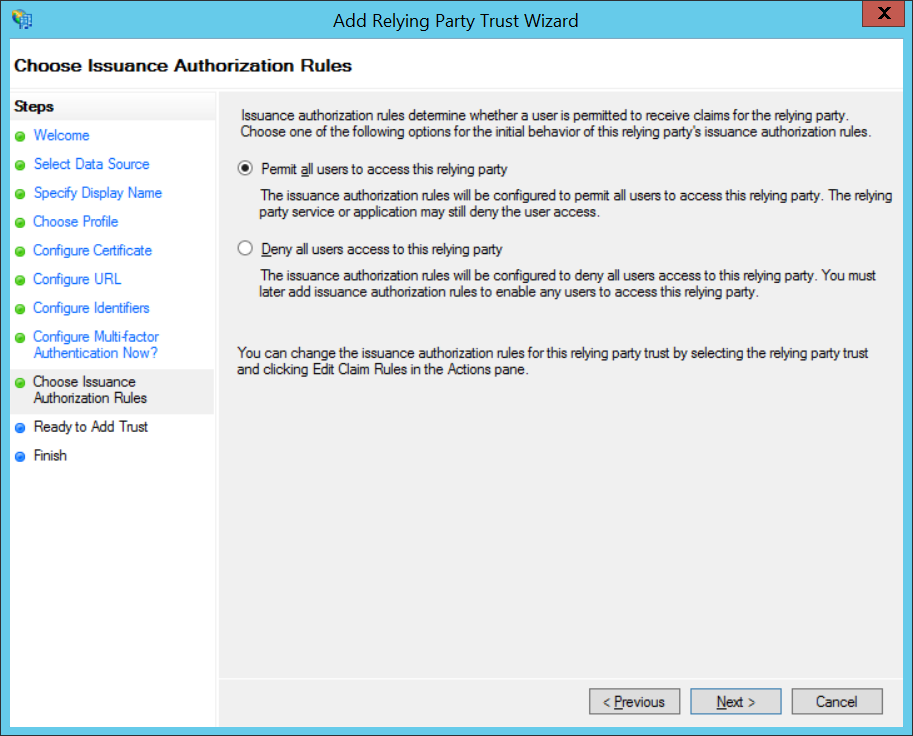
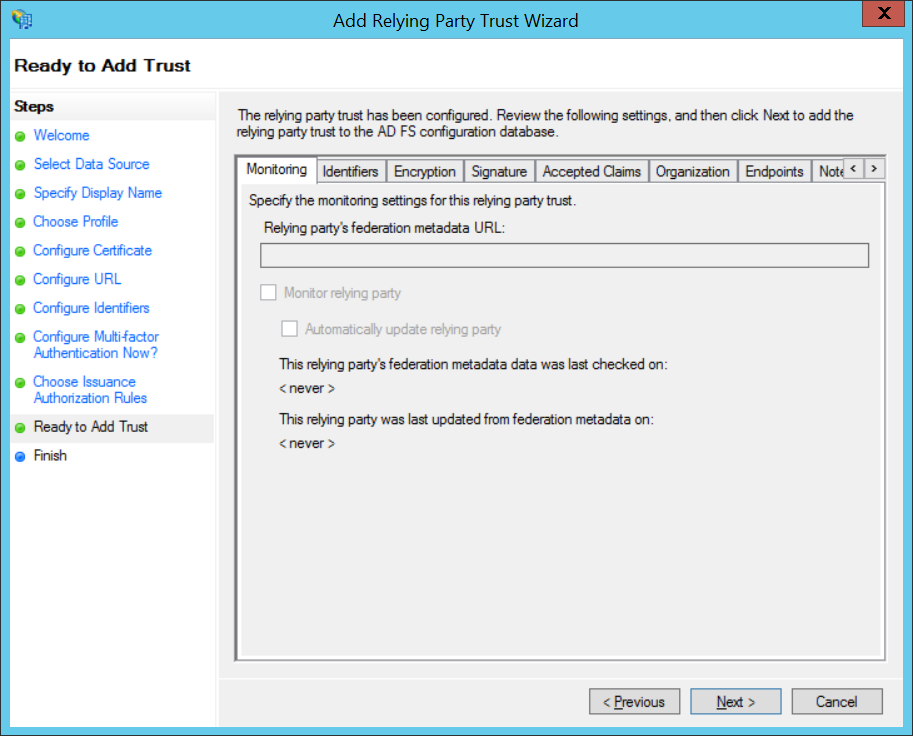
Select ‘Next’.
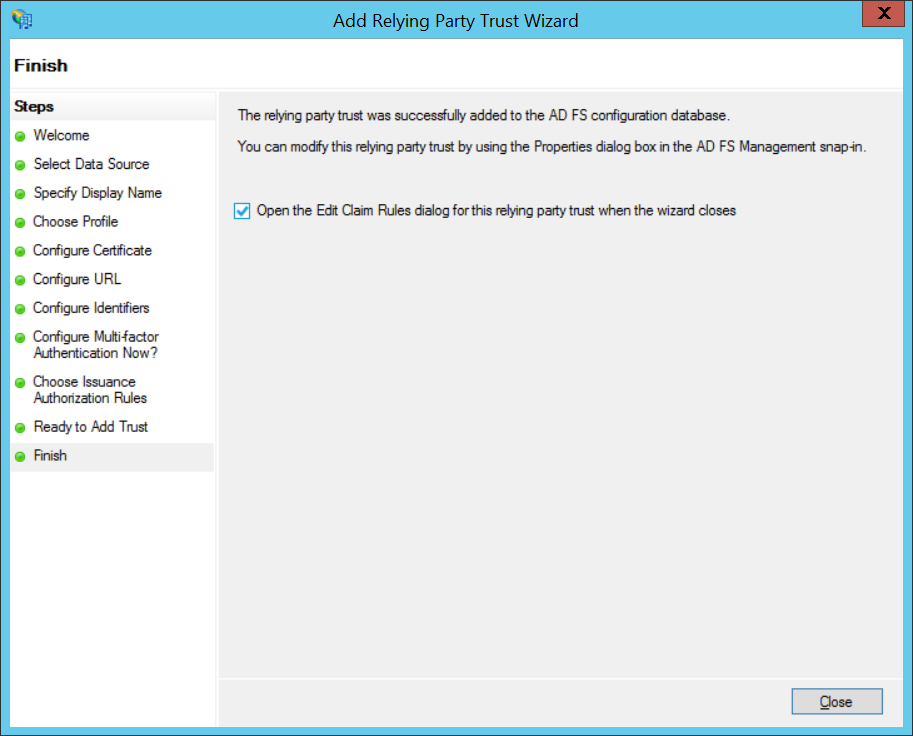
Ensure that ‘Open the Edit Claim Rules dialog for this relying party trust when the wizard closes’ checkbox is selected.
Select ‘Close’.
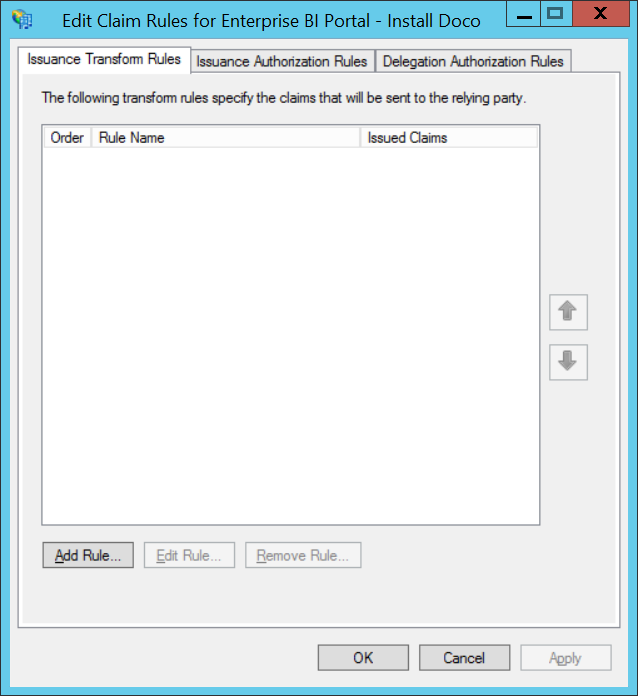
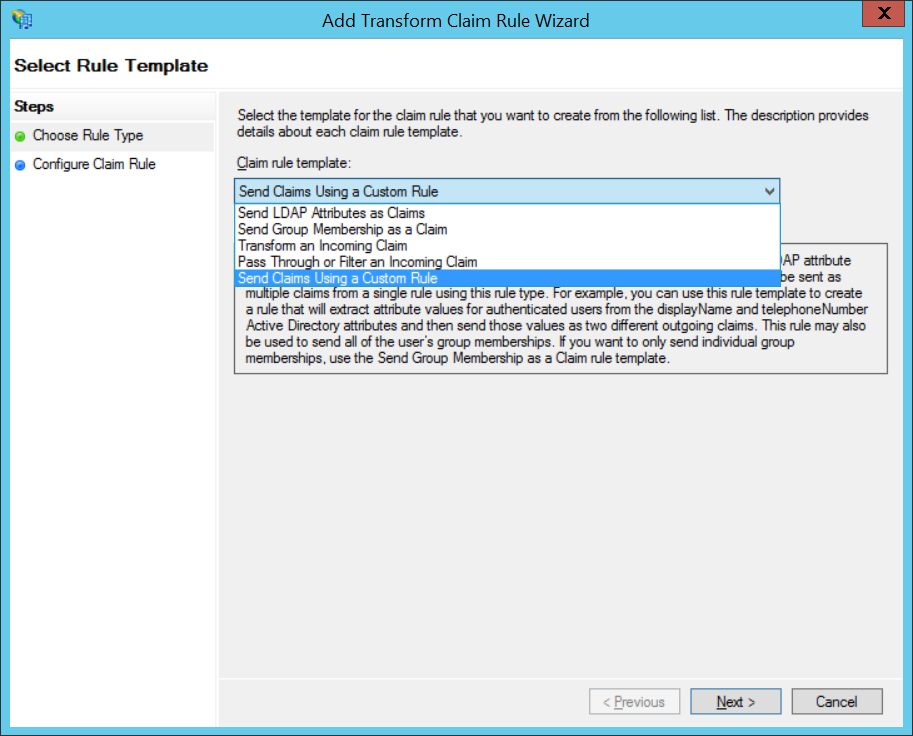
Select ‘Add Rule…’.
Select ‘Send Claims Using a Custom Rule’.
Select ‘Next’.
Enter ‘Loome Publish Rules’ for the ‘Claim rule name” or a name of your choosing.
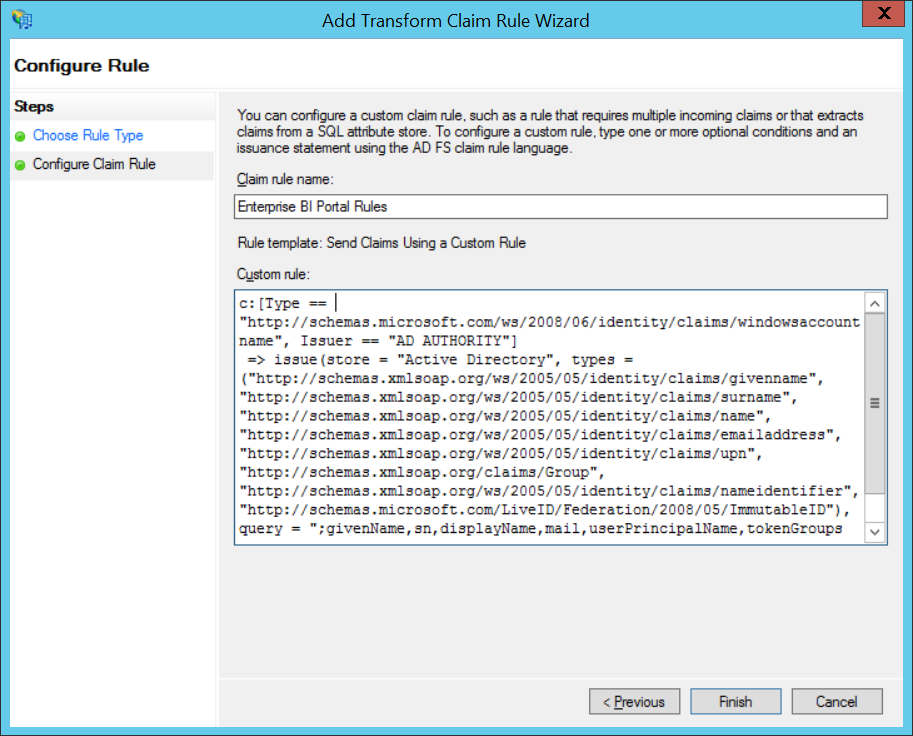
Enter the custom rule defined in the appendix under ADFS Custom Rule.
Select ‘Finish’ and then select ‘OK’.